


-

Hide and Luig
-

Meccha Hunt
-

Fruit Ninja
-
Toaster Dash
-
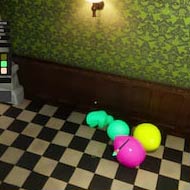
Meccha Chameleon 3
-

Meccha Chameleon 2
-

Water Color Sort
-
Stickman Chameleon
-

Paint to Hide!
-
Paint&Seek Online
-

Meccha Obby
-

Paint or Seek: Chameleon Hide Online
-

Hide ‘N Seek!
-
Paint Strike
-
Meccha Chameleon Mobile
-

A Little to the Left
-

Among Us
-

Stickman Hook
Game Not Launching? Common Fixes
Meccha Chameleon is a small, cheap game that runs on a wide range of PCs, but its rapid update schedule and huge player numbers mean that problems do pop up. The game is updated several times a week at times, and each patch can bring its own small issues. This guide covers the most common problems players run into, from the game refusing to start to endless loading and trouble joining friends, and walks you through fixes in order, from the quickest to the most thorough.
Start With the Quick Checks
Before trying anything complicated, go through these basics. They solve a surprising number of problems.
- Restart Steam completely. Close it from the system tray, not just the window, then open it again.
- Let updates finish. If the Steam library shows the game as queued or updating, wait for the download to complete.
- Restart your PC. It clears stuck processes and pending driver or Windows updates.
- Check the official news. The game’s Steam news page lists every patch; if a new update just went out, a fix for a fresh bug may already be on the way.
The Game Does Not Launch
If nothing happens when you press Play, or the game closes right after opening, try these steps.
Verify the game files
In your Steam library, right-click Meccha Chameleon, open Properties, go to Installed Files and choose to verify the integrity of the game files. Steam will replace any missing or damaged files. This is the single most useful fix for launch problems.
Update your graphics drivers
The game is built on Unreal Engine 5, which depends heavily on up-to-date GPU drivers. Download the latest driver directly from NVIDIA, AMD or Intel rather than relying on Windows Update.
Disable overlays and background tools
Overlays and recording tools sometimes conflict with games at launch. Temporarily turn off the Steam overlay, Discord overlay, GPU software overlays and any FPS counters, then try again.
Check your antivirus
Security software occasionally blocks new or recently updated game files. If the game will not start after an update, check whether your antivirus quarantined anything and add the game folder as an exception if needed.
Endless Loading or Cloud Save Problems
In June, updates 1.6.0 and 1.6.1 added countermeasures for cloud save errors and fixed an infinite loading problem on the cloud save screen, along with background music not playing. If you still get stuck on a loading screen:
- Make sure you are on the latest version of the game.
- Restart Steam and check that Steam Cloud is working for your account.
- Verify the game files.
- If the problem appears on a Workshop map only, try an official map to see whether the custom map is the cause.
Cannot Join Friends or Find a Server
| Symptom | Likely cause | Fix |
|---|---|---|
| Friend cannot connect after a patch | Different game versions | Everyone restarts Steam and installs the update |
| Join code not found | Typo, region mismatch or server restarted | Re-check the code, choose the same region, ask for a new code |
| Old code does not work | Codes from before update 4.1.0 are no longer valid | Use a code from the current server |
| Cannot search at all | No region selected | Select a region tag before searching |
| Joined into a running round | Game already in progress | Wait for the next round |
Crashes During Matches
Update 4.1.0 included a fix for crashes some players experienced during gameplay, and the developer has asked the community for help identifying other crash causes in the past. If the game crashes mid-round:
- Update to the latest version and verify files.
- Lower graphics settings and set a stable frame rate cap.
- Close heavy background programs such as browsers with many tabs.
- If you host large lobbies on Switch 2, note that the host limit was temporarily lowered to 10 players while a crash is being investigated.
Lag and Rubber-Banding
The game has become much lighter on the network over time: update 4.0.2 cut overall network usage by roughly half, and update 4.1.0 reduced painting traffic by about 40%. If you still lag:
- Choose the region closest to the host.
- Let the player with the most stable connection host.
- Use a wired connection for the host if possible.
- Avoid oversized lobbies if the host’s connection is modest.
No Sound or No Voice Chat
If game audio works but you hear no players, the reason is probably a default change: since update 4.1.1, voice chat listening is muted by default. Turn it back on in the options. Also check that the correct microphone is selected in Windows, and watch for the new microphone icon at the top of the screen to confirm that your voice is being picked up.
Workshop Map Safety
In July 2026, a few Steam Workshop maps were found to contain malware. The base game itself was never affected, and update 3.1.0 removed the ability for maps to run unrelated files. Still, it is sensible to stick to well-known custom maps with many subscribers and positive comments. If your PC behaved strangely after downloading a map, unsubscribe from it and run a full antivirus scan.
If Nothing Helps
If you have tried everything above, uninstall the game, restart your PC and install it again. When reporting a problem on the game’s Steam discussion boards, include your game version, what you were doing when the problem started and whether it happens on every map. Clear reports help the developer ship fixes faster, and given how quickly this game gets patched, a fix may arrive sooner than you expect.
Keep reading: How to Play with Friends and Controls and Best Settings.